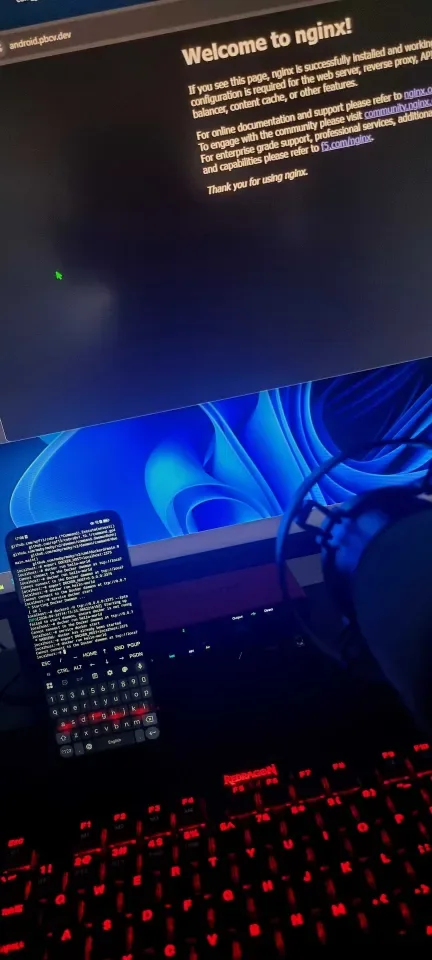
Run a real Linux VM on your Android phone
No root, no Play Store. Termux plus QEMU gives you a full x86_64 Alpine virtual machine — SSH and Docker included — running in your pocket.
Most people treat their phone as a sealed appliance. It isn't. With Termux and QEMU you can run a genuine x86_64 Linux virtual machine on a completely stock Android phone — no root, no unlocked bootloader, no developer hardware. By the end of this guide you'll have an Alpine Linux VM you can SSH into, install packages on, and even run Docker inside. It's the same Alpine you'd put on a server, just emulated on the device in your pocket.
Why bother? A throwaway sandbox for sketchy one-liners. Learning Linux without a spare machine. A tiny always-with-you box for testing container images on the train. And, honestly, because knowing it works is its own reward.
One reality check first. Termux's QEMU runs in pure emulation — your phone's ARM core is pretending to be an x86_64 CPU, instruction by instruction. It is not fast. It's perfectly fine for shells, package installs and light services; it is not for compiling large projects. If your device and kernel happen to expose KVM you can add -enable-kvm for near-native speed, but most phones don't, so everything below assumes plain emulation.
The version numbers in this guide — Alpine 3.23.4, and the Termux packages as they were in May 2026 — were current when this was written. By the time you read this, newer releases have almost certainly shipped. Before downloading, open alpinelinux.org/downloads, take the current x86_64 "Virtual" ISO, and substitute that version number everywhere it appears below.
What you'll need
- An Android phone with roughly 10 GB free storage and ideally 6 GB+ RAM (we hand 4 GB to the VM).
- About 30–40 minutes, most of it spent waiting on the installer.
- Optional but recommended: a computer on the same Wi-Fi, so you can SSH into the phone. Pasting these commands beats typing them on glass.
Step 1 — Install Termux from F-Droid
Install Termux from F-Droid — not the Google Play Store. The Play Store build has been frozen for years and is effectively broken; package installs fail on it. Install the F-Droid app from f-droid.org, then install Termux from inside F-Droid. (The builds on Termux's GitHub releases page work too.)
Open Termux. You're looking at a real terminal.
Step 2 — Bootstrap Termux
Update the package index, then install the essentials:
pkg update && pkg upgrade
pkg install openssh git curl wget
Step 3 — SSH into Termux from your computer
This step is optional, but everything below involves a lot of typing. If you have a computer on the same Wi-Fi, set up SSH now so you can paste commands instead of thumbing them in.
In Termux:
sshd          # start the SSH daemon
whoami        # your username, e.g. u0_a163
ifconfig      # find the phone's wlan0 IP, e.g. 192.168.1.42
passwd        # set a password for SSH login
Termux's sshd listens on port 8022. From your computer, using the username from whoami and the IP from ifconfig:
ssh -p 8022 [email protected]You're now in the same Termux environment, with a real keyboard and a working clipboard.
Two things worth knowing: sshd stops when Termux is killed, so re-run it after reopening the app. And pull down the Termux notification to acquire a wakelock — otherwise Android will happily suspend the VM the moment the screen goes off.
Step 4 — Install QEMU
pkg install qemu-system-x86-64-headless qemu-utilsqemu-system-x86-64-headless is the x86_64 machine emulator — headless meaning no GUI, since we drive the VM over its serial console. qemu-utils provides qemu-img, which we need to create the virtual disk.
Step 5 — Download Alpine and create a disk
Alpine Linux is ideal here: the "virt" ISO is about 60 MB, and a full install sits comfortably under 200 MB.
mkdir virtual_machine && cd virtual_machine

wget https://dl-cdn.alpinelinux.org/alpine/v3.23/releases/x86_64/alpine-virt-3.23.4-x86_64.iso
Now create a 20 GB virtual disk. The qcow2 format is sparse — it only consumes real storage as the VM actually writes data, so an empty 20 GB disk costs almost nothing up front:
qemu-img create -f qcow2 alpine.qcow2 20GStep 6 — Boot the installer
Boot QEMU with the ISO attached as a CD-ROM:
qemu-system-x86_64 \
  -m 4096 \
  -netdev user,id=n1,hostfwd=tcp::2222-:22 \
  -device virtio-net,netdev=n1 \
  -cdrom alpine-virt-3.23.4-x86_64.iso \
  -nographic \
  -drive file=alpine.qcow2,format=qcow2
What each flag does:
-m 4096— give the VM 4 GB of RAM. Lower this if your phone is tight on memory.-netdev user,...,hostfwd=tcp::2222-:22— user-mode networking, plus a rule forwarding the phone's port 2222 to the VM's port 22. That's how we'll SSH into the VM later.-device virtio-net— a fast paravirtual network card.-nographic— no display; the VM's console is wired straight into your terminal.-drive file=alpine.qcow2— the disk we just created.
Give it a minute. When it settles down, you'll see a login prompt. Log in as root — there's no password yet.
Step 7 — Give the live environment DNS
The Alpine live ISO sometimes comes up without working DNS. Pin it before running the installer:
mkdir -p /etc/udhcpc
echo 'RESOLV_CONF="no"' >> /etc/udhcpc/udhcpc.conf
echo -e "nameserver 8.8.8.8\nnameserver 8.8.4.4" >> /etc/resolv.conf
Step 8 — Run the Alpine installer
setup-alpineWork through the prompts. The answers that matter:
- Keyboard layout —
us(or your own). - Hostname — anything;
alpineis fine. - Network — interface
eth0, thendhcp. Decline manual configuration. - Root password — set something memorable. You'll need it to log back in.
- Timezone — type
?to list the options, then pick yours. - Proxy —
none. - NTP client —
none. Emulated clocks are awkward; skip it. - Mirror — just press Enter for the default.
- SSH server —
openssh. - Permit root SSH login —
yes. This is a sandbox, so it's fine here. - Which disk to use —
sda. Then choose modesysfor a real install onto the disk, and confirm the erase withy.
The install runs for a few minutes. When it's done, shut the VM down:
poweroffStep 9 — Boot the installed system
Boot again — but this time drop the -cdrom line so it starts from the disk instead of the installer:
qemu-system-x86_64 \
  -m 4096 \
  -netdev user,id=n1,hostfwd=tcp::2222-:22 \
  -device virtio-net,netdev=n1 \
  -nographic \
  -drive file=alpine.qcow2,format=qcow2
Log in as root with the password you set during the install.
Typing all of that every time gets old fast. Save a one-line launcher:
echo 'qemu-system-x86_64 -m 4096 -netdev user,id=n1,hostfwd=tcp::2222-:22 -device virtio-net,netdev=n1 -nographic -drive file=alpine.qcow2,format=qcow2' > alpine.sh
chmod +x alpine.sh
From now on the VM is a single command: ./alpine.sh.
To shut the VM down cleanly, run poweroff from inside it. To force-quit QEMU from the outside, press Ctrl-a then x.
Step 10 — SSH into the VM
Remember hostfwd=tcp::2222-:22? The phone's port 2222 forwards straight to the VM's SSH. From within Termux (or from your SSH session into Termux):
ssh root@localhost -p 2222You now have a clean Alpine box. Run apk add ... and build whatever you like.
Optional — Docker inside the VM
Inside the Alpine VM:
apk add docker
rc-update add docker boot
service docker start
That's a working Docker host. To reach its API from Termux — or from your computer — forward one more port. Shut the VM down and replace your launcher with one that also forwards 2375, the Docker remote API port:
echo 'qemu-system-x86_64 -m 4096 -netdev user,id=n1,hostfwd=tcp::2222-:22,hostfwd=tcp::2375-:2375 -device virtio-net,netdev=n1 -nographic -drive file=alpine.qcow2,format=qcow2' > alpine.shThe Docker remote API on port 2375 has no authentication whatsoever — anything that can reach it controls the daemon completely. Only ever forward it over localhost or a trusted LAN, never the public internet. For anything beyond a throwaway VM, use the TLS-protected port 2376 with client certificates instead.
Bonus — wireless ADB to the phone itself
This one is unrelated to the VM, but it pairs naturally with the setup. Android's wireless debugging lets a computer run adb against the phone with no cable attached. Enable Developer Options → Wireless debugging, tap "Pair device with pairing code", and from your computer run:
adb pair 192.168.1.4:41538Use the exact IP:port the phone shows you. It's handy for pushing files into Termux or scripting the phone while the VM hums along in the background.
Where to go next
You've got a real, isolated Linux machine running on your phone. From here you could run a small web service inside the VM and reach it through another hostfwd rule, use it as a disposable environment for commands you don't trust, or learn apk and OpenRC without any risk to a real box. Snapshot the disk before experiments — cp alpine.qcow2 alpine.backup.qcow2 — and a bad command becomes a five-second restore.
It will never win a benchmark. But it's a complete Linux userland that lives in your pocket, and that's a genuinely useful thing to know how to build.